Everything is already set to sensible defaults, so you can skip this and press Start. But these are worth a minute of your attention. The first two are Step 3 of first-time setup, so you meet them while the wizard is still open; the other two live on the Preferences page — where all four can be changed at any time.
Want more than a summary? The Strategy Guide walks every one of these options with annotated screenshots and honest notes on why customers choose differently.
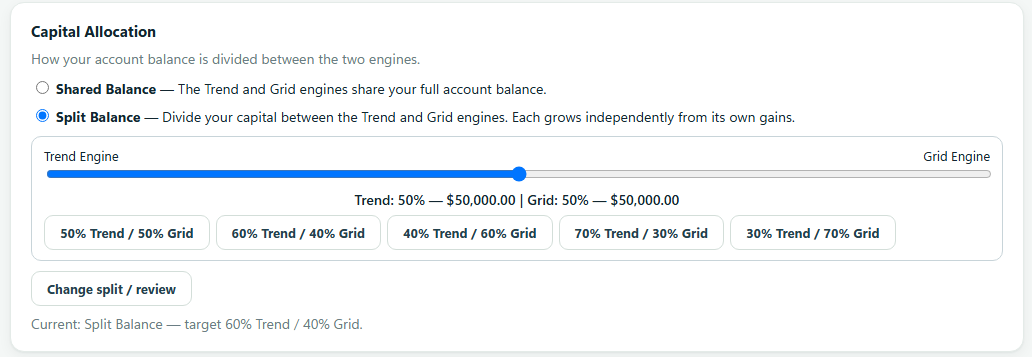
Shared Balance is the default: both engines trade from your full account balance, and cash one engine is not using is immediately available to the other. Split Balance divides your capital between the engines by a ratio you choose — each then keeps its own balance and compounds its own gains, like two accounts inside one.
If you pick Split, a slider sets the division — for example “Trend: 60% — $6,000 | Grid: 40% — $4,000” on a $10,000 account — and the confirmation spells out exactly what each engine will start with. The ratio is the initial division only: from then on the two balances drift apart naturally with each engine's own results, and that is by design. There is no automatic rebalancing.
The preset buttons under the slider always name both engines — “60% Trend / 40% Grid” and so on — so one tap sets a common division and there is never a bare number to misread.
You can switch either way later. To divide an account that is already running, go to Preferences → Capital Allocation, choose Split Balance, set the ratio and press Review & apply. A screen then shows each engine's current positions, the cash each would receive and the balance each would start with — nothing changes until you tick the box and confirm. If one engine already holds more than the share you picked, it simply receives no new cash — nothing is ever sold to force the division — and the account reaches your ratio over time as that engine's later gains go to the other side instead. Going back to Shared Balance is instant: the two balances pool again, and again nothing is sold.
Wondering which to pick? The Strategy Guide's Shared Balance vs. Split Balance section describes why customers choose differently.
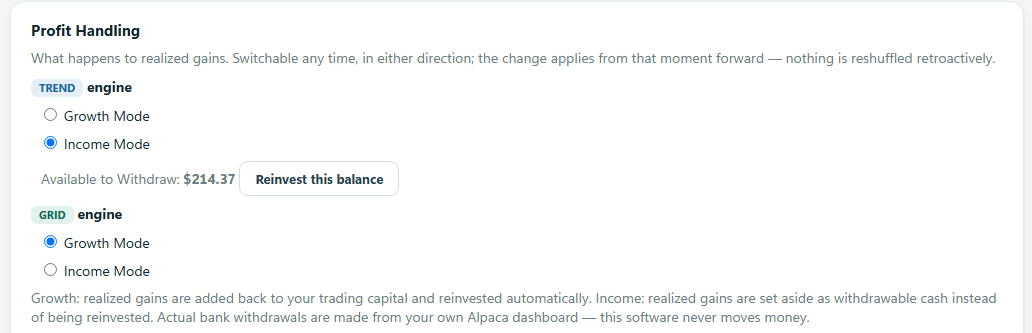
Growth Mode is the default and is exactly what the robot has always done: realized gains are added back to your trading capital and reinvested automatically, so position sizes grow as the account grows.
Income Mode sets realized gains aside instead. The set-aside money shows on the main screen as “Available to Withdraw”, the engines never trade it, and your trading capital stays level rather than compounding. If a trade later loses, the loss comes out of the set-aside balance first — so “Available to Withdraw” is always your net realized profit since you switched it on, never borrowed principal.
Switch between the two any time in Preferences; the change applies from that moment forward. Switching back to Growth keeps anything already set aside visible and withdrawable until you press “Reinvest this balance”. In Split Balance, each engine has its own switch — you can compound the Grid engine while taking the Trend engine's profits as cash.
The Strategy Guide's Growth Mode vs. Income Mode section covers why customers pick one or the other.
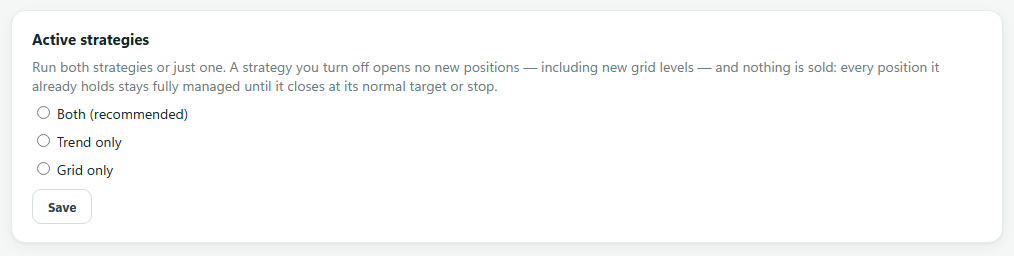
The app contains two independent strategies that share one account: Trend looks for stocks starting a sustained move and holds them with a stop and a target; Grid buys small amounts as a stock dips and sells them back as it recovers. Both is the default and the recommended setting — they behave differently in different markets. Turning one off stops it opening new positions; anything it already holds is still managed to its exit.
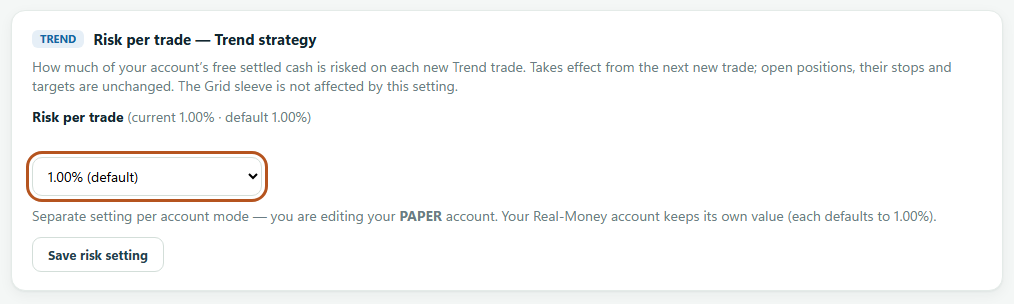
This is how much of your account's free cash the Trend strategy puts at risk on each new trade, from 0.25% up to 3.50%. The default is 1.00% and it is the sensible place to start.
In plain terms: at 1.00% on a $10,000 account, a trade is sized so that if it goes wrong and hits its stop, roughly $100 is lost — not the whole position, and not the whole account. A higher number means bigger positions, bigger gains when it works and bigger losses when it does not.
Paper and real money keep separate values. Turning it up while experimenting on paper cannot change what your real-money account does. A change applies to the next new trade — positions already open are never resized.