// STEP 3 OF 4 //

Download and install

Ten minutes, mostly clicking Next. The one thing that surprises people is the security warning Windows shows for new software — we show you exactly what it looks like and how to get past it.

What your PC needs

Operating system64-bit Windows. Verified on Windows 10 version 21H2 (build 19044) and Windows 11. Older Windows versions are not supported.
InternetA normal home connection. The robot needs it for market data, your broker, and licence checks.
Brokerage accountAn Alpaca account with API keys — Step 1. A paper account is enough to start.
Activation keyThe download is free; the key is what licenses it to trade — Step 2.
Left switched onThe robot only trades while your PC is awake and the app is running. See Day 2.
// DOWNLOAD AND RUN //

Installing the app

  1. Download the installer

    Go to the Download page and download KUT-Setup.exe. It is about 8 MB, so it arrives in seconds.
  2. Windows will warn you about it — this is expected

    Windows shows “Windows protected your PC” for software it has not seen many times before. Our installer is not yet code-signed with a purchased certificate, so you will see it. To continue: click More info, then Run anyway. If you would rather verify the file first, the checksum is at the bottom of this page.
  3. If your antivirus asks

    Some antivirus products also ask about new, unsigned software. Choose to allow or keep the file. If it quarantines the installer, restore it from the antivirus quarantine list and allow it.
  4. Step through the installer

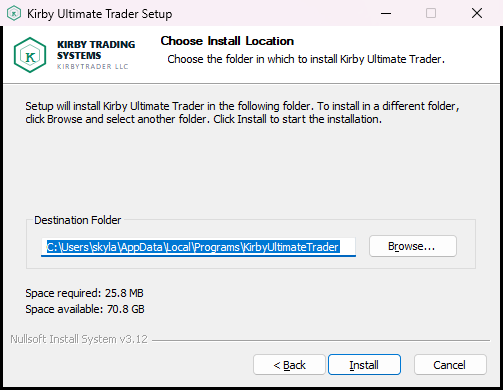
    Welcome → licence agreement → install location → install. The defaults are right for almost everyone; you can just click through.
  5. It installs for you only, no administrator needed

    The app installs under your own user account, so Windows does not ask for an administrator password. It also creates a Start Menu entry and sets itself to start with Windows, so it is ready during market hours.
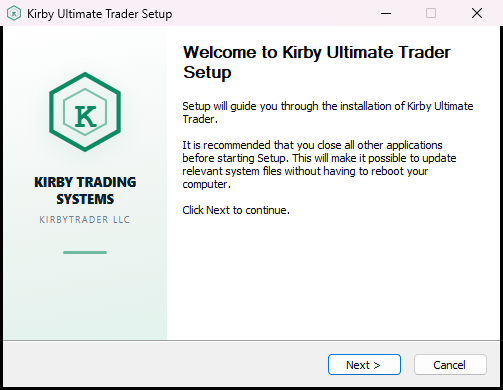
The installer's welcome screen, showing the Kirby Trading Systems logo and a Next button.
The first installer screen. Click Next.
The installer's install-location screen with the default folder already filled in.
Leave the folder as it is unless you have a reason to change it, then click Install.
// FIRST LAUNCH //

Opening it for the first time

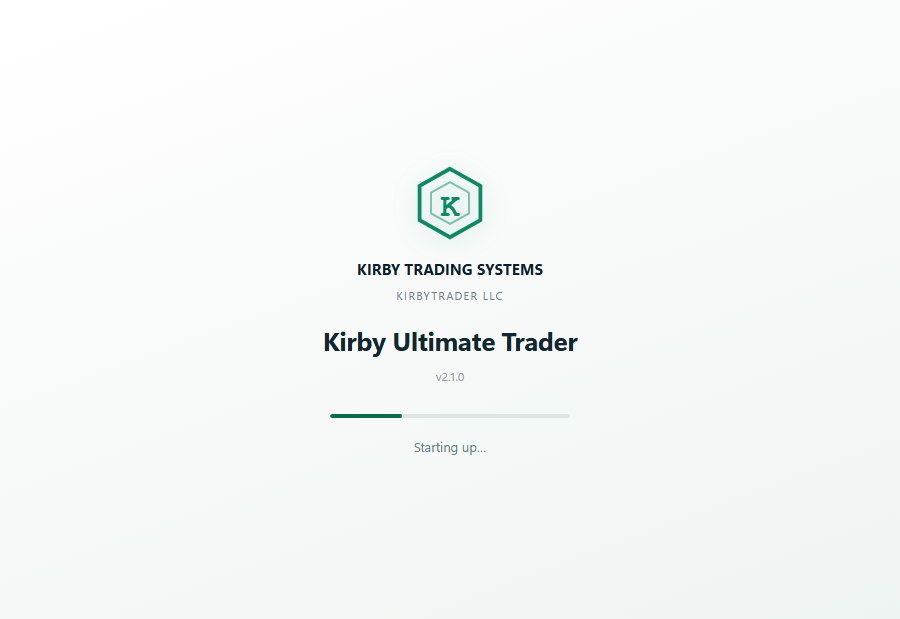
The app opens with its own window and a short start-up screen while it prepares its database. On a fresh install it goes straight to the two-step setup, which is Step 4 of this guide.

The Kirby Ultimate Trader start-up screen showing the logo, the product name and version 2.1.0.
The start-up screen. First launch takes a few seconds longer while the database is created.
If nothing appearsLook in the notification area at the bottom-right of your screen (you may need to click the small arrow) for the Kirby icon — the app may already be running there. Right-click it and choose Open Dashboard. If the window still does not open, the troubleshooting page covers the remaining causes.
// OPTIONAL: VERIFY THE DOWNLOAD //

Checking you got the real file

A SHA-256 checksum is a long fingerprint of a file: run it on your download, compare it with the one we publish, and if they match you have byte-for-byte the file we released. This is optional and entirely for peace of mind. The current checksum is published on the Download page; to produce yours, open PowerShell and run:

Get-FileHash "$env:USERPROFILE\Downloads\KUT-Setup.exe" -Algorithm SHA256